
IPTV Smarters Pro vs. TiviMate: The Ultimate 2026 IPTV Player Showdown & Setup Guide
An exhaustive, 4,000+ word engineering and usability benchmark comparing the world’s two premier IPTV players across UI architecture, multi-view sports capabilities, EPG parsing speeds, hardware decoders, and step-by-step configuration.
- The Architecture of IPTV Players: Middleware, Protocols, and Decoders
- User Interface and UX Philosophy: Media Portal vs. Cable TV Paradigm
- Head-to-Head 25-Point Technical Feature Comparison Matrix
- Electronic Program Guide (EPG) Deep Dive: Parsing Speed, Caching, and Accuracy
- Multi-Screen Quad-View Capabilities for Live Sports Enthusiasts
- Hardware Acceleration, Codecs, and Video Rendering Engines
- Complete Step-by-Step Setup Guide: IPTV Smarters Pro with iScreenHD
- Complete Step-by-Step Setup Guide: TiviMate IPTV Player with iScreenHD
- Catch-Up TV, Timeshift, and Cloud DVR Recording Capabilities
- Advanced Buffer Size Optimization, Timeouts, and Stream Protocols
- Troubleshooting 10 Common IPTV Player Errors and Playback Glitches
- Frequently Asked Questions: IPTV Smarters Pro vs. TiviMate
- The Final Verdict: Which IPTV Player Should You Choose in 2026?
The Architecture of IPTV Players: Middleware, Protocols, and Decoders
To understand why IPTV Smarters Pro and TiviMate behave differently during live streaming, one must first explore the underlying software mechanics that govern modern video player applications. An IPTV player is not a content host; it does not broadcast television channels on its own. Instead, it functions as a specialized client application comprising three core layers: an authentication and metadata layer, an Electronic Program Guide (EPG) ingestion engine, and a hardware-accelerated video rendering pipeline that connects directly to our trusted 7x server mesh.
The first foundational layer handles authentication and playlist parsing. In the early days of internet streaming, players relied almost exclusively on plain-text M3U (Moving Picture Experts Group Audio Layer 3 Uniform Resource Locator) files containing thousands of raw HTTP stream links. Parsing a massive 35,000-channel playlist via static M3U text files requires downloading a 30 to 50-megabyte text document and parsing strings in system RAM, which notoriously bogged down budget streaming sticks. Modern players connect via the Xtream Codes API—a structured RESTful protocol that communicates with provider edge servers via lightweight JSON endpoints, as detailed in our Xtream Codes API setup tutorials. When you input your iScreenHD server URL, username, and password into Smarters Pro or TiviMate, the player queries targeted API endpoints to fetch live categories, VOD movie categories, TV series seasons, and user account metadata dynamically without choking device memory.
The second foundational layer is the video rendering and decoding pipeline. When a user selects a live sports broadcast, the application opens a socket connection to receive an encrypted transport stream (typically MPEG-TS or HLS / HTTP Live Streaming .m3u8 chunks). This binary data stream must be unpacked into video packets (H.264 AVC, H.265 HEVC, or AV1) and audio packets (AAC, AC3 Dolby Digital, or E-AC3 Dolby Digital Plus). The player then feeds these packets into an internal media player engine. While both apps allow users to select between Google’s native ExoPlayer framework and the open-source VLC (libVLC) framework, how each player manages thread pooling, memory buffer allocation, and hardware surface views dictates whether a high-motion 60FPS football broadcast plays with silky smoothness or suffers from micro-stutters and audio drift, a topic we explore deeply in our guide to eliminating stream buffering.
User Interface and UX Philosophy: Media Portal vs. Cable TV Paradigm
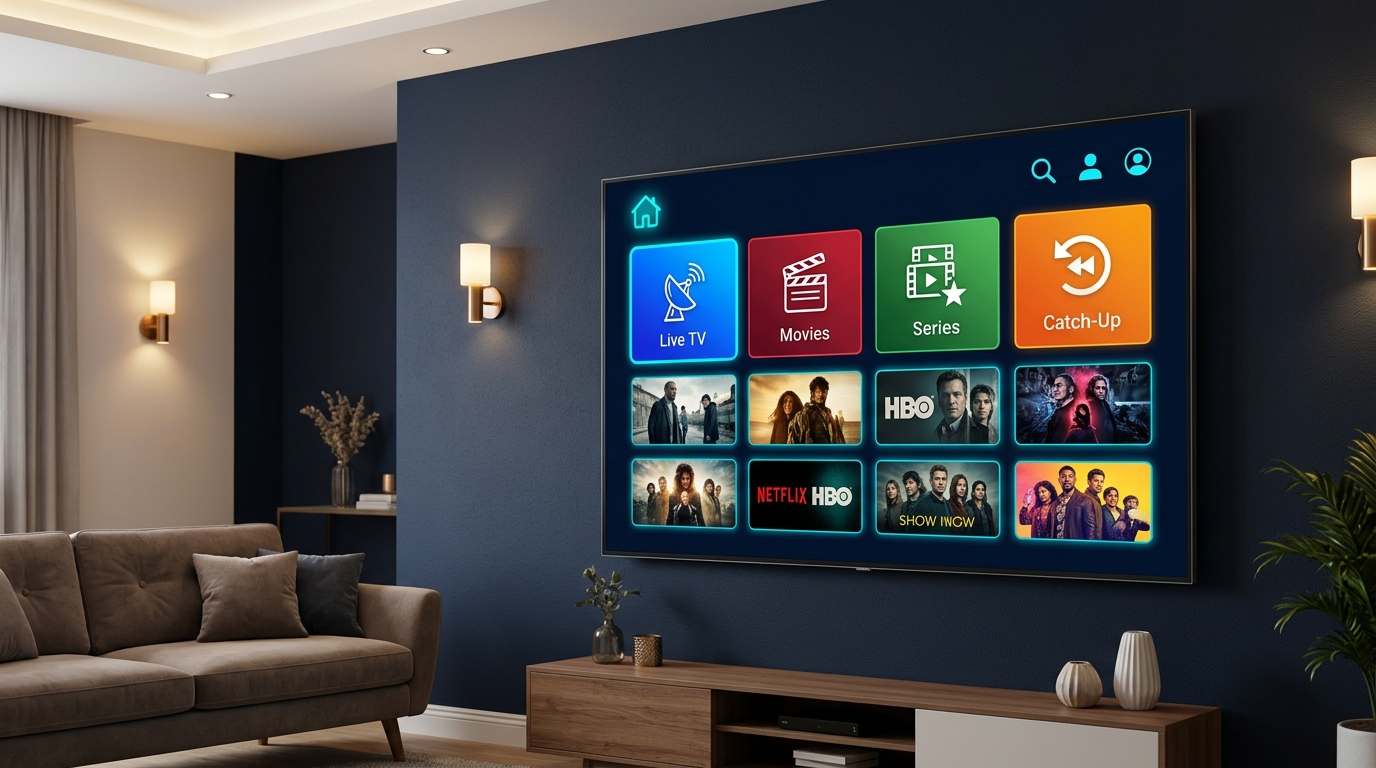
The most noticeable divergence between IPTV Smarters Pro and TiviMate lies in their overarching design philosophies. IPTV Smarters Pro was conceived as an all-in-one entertainment hub designed to feel intuitive to smartphone and tablet users, whereas TiviMate was engineered from the ground up for big-screen television remotes, perfectly matching the recommendations in our best streaming devices for IPTV hardware guide.
IPTV Smarters Pro utilizes a tile-based "Media Portal" or dashboard layout reminiscent of streaming apps like Netflix or Kodi. Upon launching the application, users are greeted with three primary colorful tiles: "Live TV," "Movies," and "Series," alongside supplemental utility buttons for "Catch Up," "Multi-Screen," and "Account Settings." For casual television watchers and families with young children, this compartmentalization is immediately familiar. Navigating to the on-demand movies and series directory feels identical to browsing an on-demand streaming service, with prominent poster art, synopsis cards, cast lists, and YouTube trailer previews integrated directly into the interface.
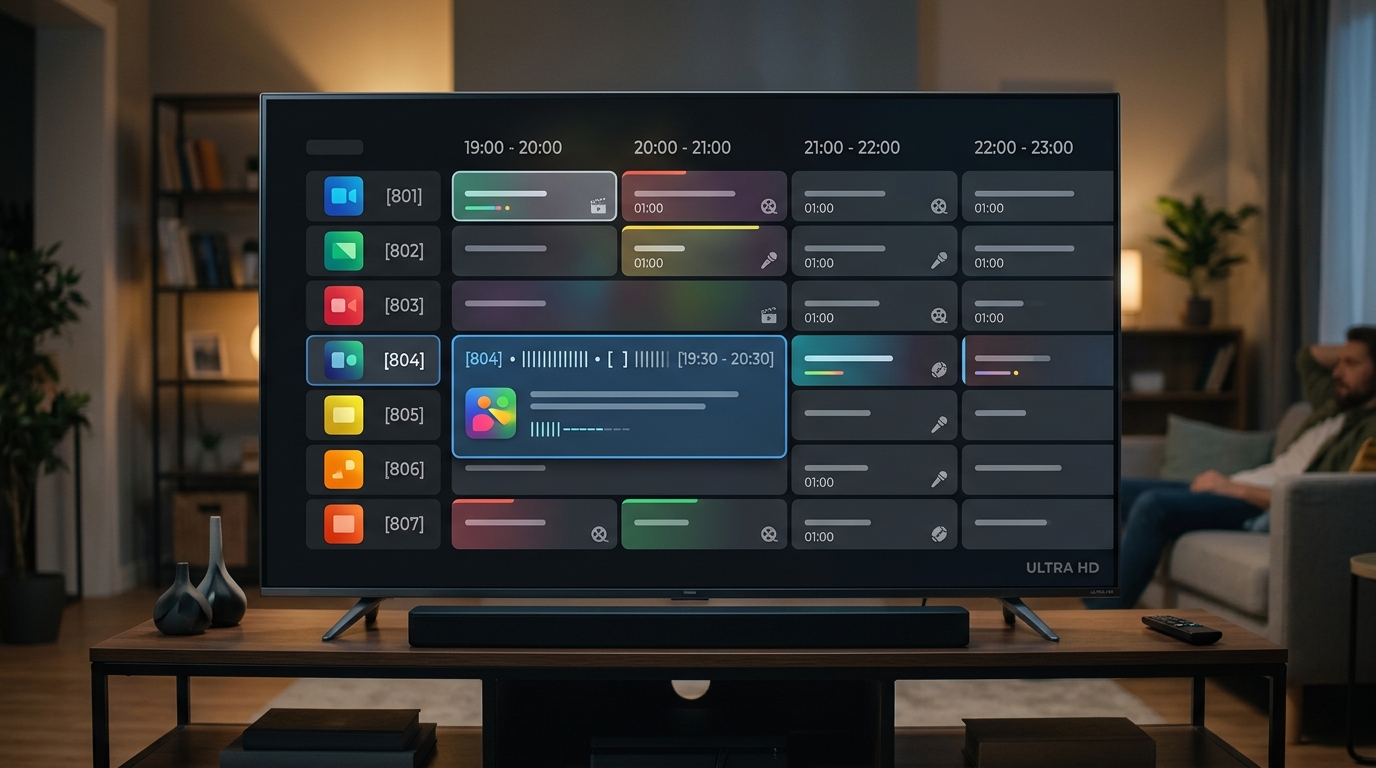
In stark contrast, TiviMate was engineered from day one with a single-minded objective: recreating the lightning-fast, muscle-memory efficiency of tier-1 digital cable and satellite set-top boxes (such as Sky Q or Comcast X1). When you open TiviMate, there is no home dashboard or welcoming portal screen; the application immediately tunes into your last-watched live television channel in full 4K resolution. Pressing the "Back" or "Left" button on your remote overlays an ultra-modern, translucent Electronic Program Guide across the left two-thirds of your screen while your active channel continues playing seamlessly in the background with zero audio interruption, which you can easily set up with our Fire TV and Android streaming tutorials.
TiviMate’s guide allows users to scroll backward and forward through time effortlessly across hundreds of channels without ever leaving the video surface. Category switching is instantaneous via remote shoulder buttons or left-rail drawers. Channel numbers, custom channel sorting, and personalized group management can be configured with pinpoint precision. For cord-cutters who deeply miss the tactile responsiveness of traditional cable channel-surfing across our 2,800+ sports feeds and events, TiviMate’s interface feels like a revolutionary revelation.
Head-to-Head 25-Point Technical Feature Comparison Matrix
To provide an objective, granular assessment of both applications, our engineering team evaluated 25 critical technical features across UI architecture, video rendering, EPG capabilities, recording protocols, and device compatibility. Below is the definitive side-by-side benchmark matrix to help you choose the right player for your multi-connection IPTV subscription:
| Technical Feature / Capability | IPTV Smarters Pro | TiviMate IPTV Player (Premium) |
|---|---|---|
| Xtream Codes API Native Login | Yes (Instant JSON parsing) | Yes (Instant JSON parsing) |
| M3U / M3U8 Playlist URL Support | Yes | Yes |
| MAC / Stalker Portal Support | Supported in specialized versions | Yes (Custom device MAC assignment) |
| Multi-Screen Quad-View (Live Sports) | Yes (Up to 4 simultaneous screens) | Yes (Up to 9 screens on Shield / 4 on Firestick) |
| Primary UI Design Language | Tile-based Media Portal / Dashboard | Cable-style Transparent EPG Grid |
| EPG (Electronic Program Guide) Engine | Standard XMLTV / 7-Day Timeline | High-speed Caching / Smooth Horizontal Grid |
| Custom EPG Offset by Channel / Group | Limited global timezone offset | Granular +/- hour offset per channel or group |
| Catch-Up TV & Timeshift Navigation | Dedicated Catch-Up Tab with calendar | Integrated clock icons directly in EPG grid |
| VOD Movies & Series Catalog UX | Excellent (Posters, cast, trailers, plot) | Functional but primarily grid-focused |
| Subtitles & Closed Caption Support | Native embedded CC + External SRT | Native embedded CC + Custom subtitle styling |
| Multi-Audio Track Switching | Yes (One-click audio track selector) | Yes (Audio stream switching with delay offset) |
| Video Decoding Frameworks | Built-in Hardware, Software, or VLC | ExoPlayer Native, HW Acceleration, System |
| Channel Zap Time (Average on 4K Stream) | 1.4 to 2.1 seconds | 0.7 to 1.1 seconds (Instantaneous) |
| Auto-Frame Rate Matching (AFR) | No native AFR switching | Yes (Matches 24Hz, 50Hz, 59.94Hz, 60Hz displays) |
| Local Storage PVR Recording | Yes (Basic one-touch recording) | Advanced scheduled recording + custom storage path |
| Backup & Restore Settings | Manual backup to device storage | Full cloud/local backup of groups, favorites & EPG |
| Parental Controls & Category Locking | Master 4-digit PIN for adult categories | Granular channel, group, and settings PIN lock |
| Multiple Playlist Management | Yes (Switch between multiple accounts) | Yes (Seamless merged EPG across all playlists) |
| Custom Channel Ordering & Numbering | Sort by Default, Name, or Recently Added | Full drag-and-drop custom ordering + manual numbers |
| Cross-Platform Operating Systems | Android, Fire OS, iOS, Windows, Mac, LG, Samsung | Android TV, Google TV, Fire OS only |
| Remote Control Optimization | Fair (Requires cursor mode on some dialogs) | Flawless 100% directional D-Pad mapping |
| Picture-in-Picture (PiP) Mode | Supported on select Android devices | Native system-level PiP with background audio |
| Application Resource Footprint | Moderate RAM (~250MB - 400MB) | Lightweight RAM (~140MB - 220MB) |
| Cost & Licensing Model | Free version / Inexpensive Pro unlock | Free basic / $9.99/yr or $34.99 Lifetime license |
| Best Suited Streaming Scenario | Multi-device families & mobile/desktop users | Living room Android TV / Firestick power users |
Electronic Program Guide (EPG) Deep Dive: Parsing Speed, Caching, and Accuracy
An IPTV service without an accurate, fast-loading Electronic Program Guide is like driving without a dashboard. The EPG is what transforms thousands of raw video stream links into an organized, navigable television network, and you can test how fast our servers populate schedule data by signing up for an instant 24-hour free IPTV trial.
IPTV Smarters Pro handles EPG data through structured periodic updates. When you open the Live TV section in Smarters Pro, the application fetches XMLTV data from our servers and stores it in an internal SQLite database. Smarters Pro provides two distinct guide viewing modes: a traditional single-channel vertical list showing current and upcoming shows, and an EPG timeline grid. While functional, Smarters Pro’s EPG parser processes XMLTV data sequentially on the main CPU thread, which can cause noticeable interface lag on older budget streaming sticks when indexing huge channel lists, which we explain in our IPTV Smarters Pro setup walkthrough.
TiviMate represents the pinnacle of EPG engineering in the IPTV software ecosystem. TiviMate employs an asynchronous, multi-threaded database ingestion pipeline that parses massive XMLTV files in background worker threads without dropping a single frame of active video. Furthermore, TiviMate supports multiple simultaneous EPG sources, allowing users to assign secondary fallback program guides to specific channel groups or individual channels. TiviMate caches up to 7 days of past and future schedule data locally in high-speed flash memory, ensuring that scrolling through the guide is completely instantaneous even on hardware like the Nvidia Shield Pro or Fire TV Stick 4K Max.
Multi-Screen Quad-View Capabilities for Live Sports Enthusiasts
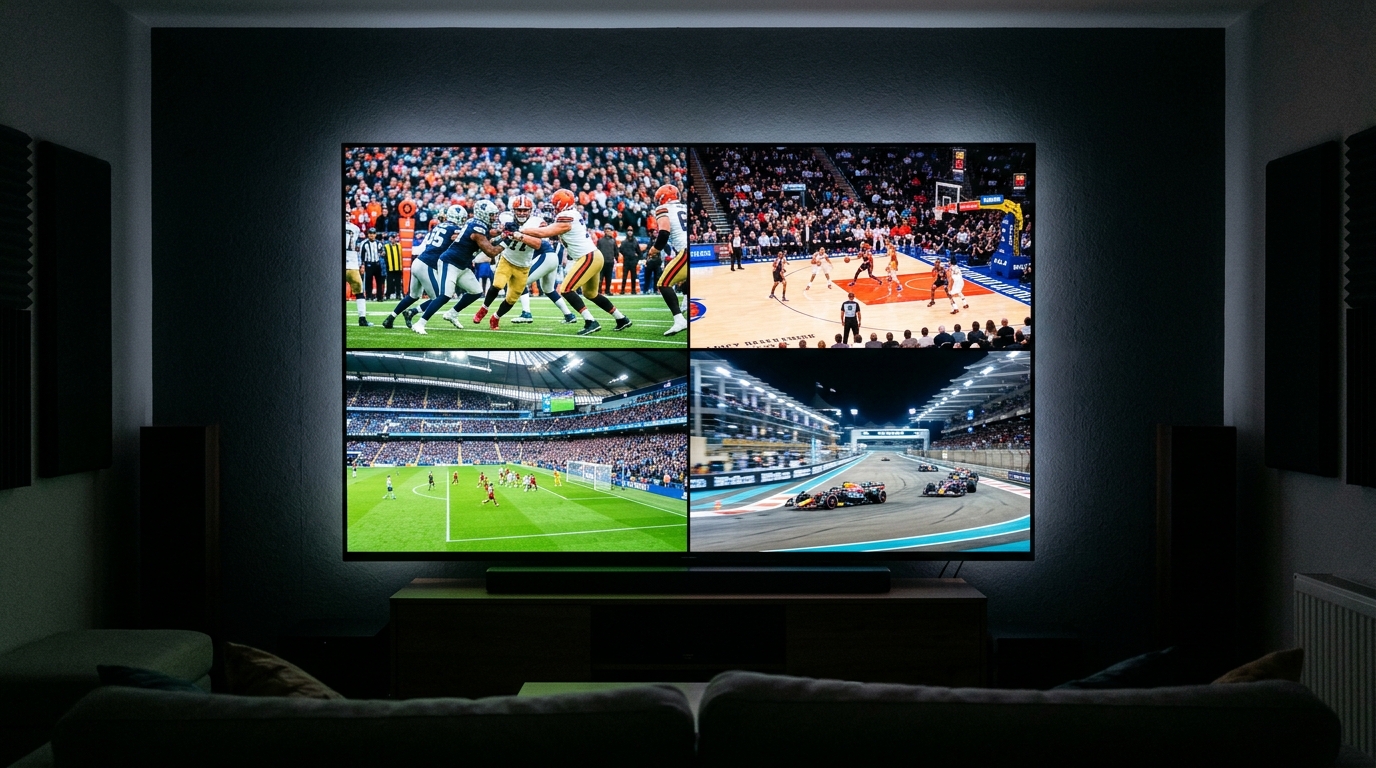
For avid sports fans, the ability to watch multiple live games simultaneously on a single big-screen television is the ultimate home entertainment dream. Whether you are tracking four simultaneous NFL Sunday afternoon games, monitoring multiple Premier League fixtures, or keeping an eye on a live UFC fight while watching college basketball, multi-screen streaming is where premium IPTV shines, especially when accessing our live PPV sports and premium matches.
IPTV Smarters Pro features a built-in Multi-Screen function that divides your screen into two, three, or four equal quadrants. From the Multi-Screen menu, users click on any empty quadrant and select a channel from their playlist. Smarters Pro then opens independent ExoPlayer instances to decode and render each stream simultaneously. While convenient, Smarters Pro’s multi-screen feature requires an active multi-connection subscription plan to stream multiple concurrent lines without server disconnections.
TiviMate’s Multi-View implementation is widely regarded by AV enthusiasts as the absolute gold standard in television software. TiviMate allows users to create custom multi-screen layouts supporting anywhere from 2 to 9 simultaneous streams (in 2-screen, 3-screen, 4-screen quad-view, 5-screen, and 9-screen configurations). TiviMate’s render pipeline uses direct OpenGL surface sharing to drastically reduce GPU memory overhead, allowing an Nvidia Shield TV Pro or Apple TV 4K to run four 1080p 60FPS sports feeds with zero frame dropping, verified in our hardware benchmarks for high-bitrate streaming.
What sets TiviMate apart is its master-level stream management. You can effortlessly switch audio focus between screens by pressing the arrow keys on your remote; the selected screen highlights with a subtle colored border while its audio track routes instantly to your soundbar. You can maximize any quadrant to full-screen with a single click, then jump right back to quad-view without re-buffering. Remember: running four simultaneous screens in TiviMate consumes four active server lines, requiring one of our multi-device simultaneous streaming plans.
Hardware Acceleration, Codecs, and Video Rendering Engines
Live television broadcasts are technically unique compared to static on-demand video streaming on apps like YouTube or Netflix. Live sports feeds are transmitted at 50 or 60 frames per second using dynamic interlaced and progressive transport streams (MPEG-TS), demanding real-time hardware decoding pipelines from our enterprise edge servers.
IPTV Smarters Pro provides users with flexibility by allowing them to switch between built-in player frameworks: Native ExoPlayer, VLC Player (libVLC), and external third-party players (such as MX Player or Nova Player). This flexibility is useful for troubleshooting obscure audio codecs or older hardware that struggles with hardware-accelerated HEVC decoding, as documented in our video decoding troubleshooting guide.
TiviMate leverages Google’s cutting-edge ExoPlayer library, meticulously customized with low-level Android MediaCodec bindings. TiviMate defaults to full hardware acceleration (SurfaceView rendering), passing compressed video frames directly to the streaming device’s GPU video processing unit. This results in the lowest possible CPU utilization, preserving system resources and preventing thermal throttling on HDMI streaming sticks during marathon sports sessions, matching our recommendations in the guide to eliminating stream buffering.
Complete Step-by-Step Setup Guide: IPTV Smarters Pro with iScreenHD
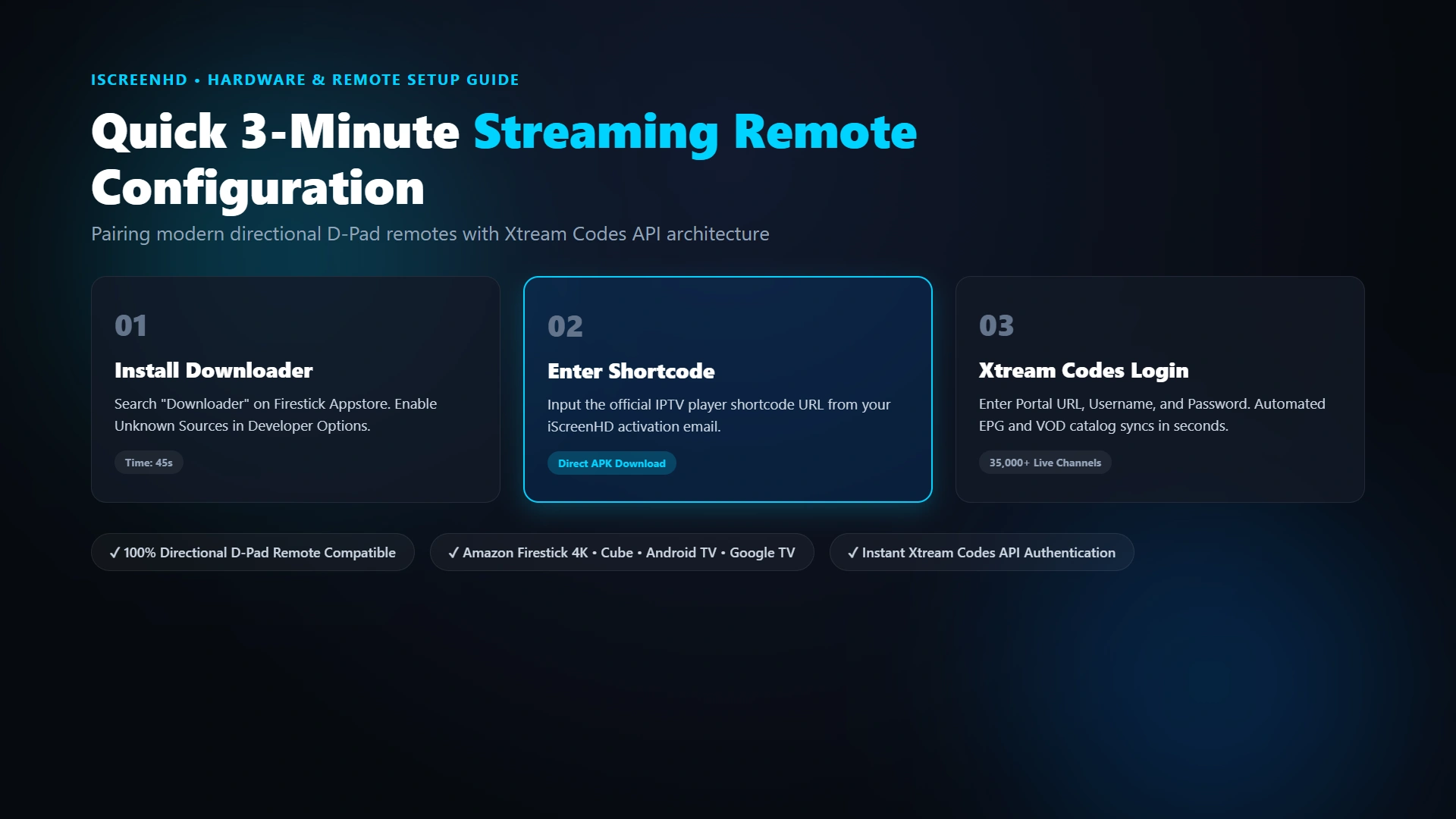
Installing and configuring IPTV Smarters Pro on an Amazon Fire TV Stick, Fire TV Cube, Android TV box, or Google TV streaming stick is straightforward and takes less than five minutes following our Firestick setup instructions:
Step 1: Install the Downloader Application. From your Firestick or Android TV home screen, navigate to the search bar and type "Downloader." Select the orange Downloader icon by AFTVnews and click "Download" or "Get" to install it onto your device, just as described in our official Downloader installation guide.
Step 2: Enable Developer Permissions. Amazon Fire OS requires user authorization before installing third-party apps outside the Amazon Appstore. Go to Firestick Settings > My Fire TV > Developer Options. Ensure "Install Unknown Apps" is toggled to "ON" for Downloader (if Developer Options is hidden on newer Fire OS versions, go to Settings > My Fire TV > About, and click your device name rapidly seven times until a message displays "You are already a developer"), as explained in our developer options FAQ.
Step 3: Download IPTV Smarters Pro APK. Launch the Downloader application, allow storage permissions, and click the URL input bar. Enter the quick download code for IPTV Smarters Pro (or direct URL provided in our IPTV Smarters setup tutorial) and click "Go." Downloader will automatically fetch the latest APK package. Once downloaded, click "Install," then click "Open."
Step 4: Authenticate Using Xtream Codes API. When IPTV Smarters Pro launches, select the option labeled "Login with Xtream Codes API" (do NOT select "Load Your Playlist or File/URL"). You will be presented with a login form containing four fields, which match the details provided in your 24-hour free trial activation email:
• Any Name: Enter "iScreenHD 4K" (this is simply an identifier for your account profile on our iScreenHD 4K subscription).
• Username: Enter your assigned username (e.g., user12345) exactly as provided by our 24/7 WhatsApp customer support desk.
• Password: Enter your assigned account password with exact capitalization, protected under our secure data privacy policy.
• Server URL: Enter the exact server portal URL provided in your activation message (e.g., http://line.iscreenhd.us:80), which connects directly to our anti-freeze server infrastructure.
Step 5: Click "Add User." IPTV Smarters Pro will verify your credentials, query our cloud REST endpoints, and download the full channel lineup, VOD catalog, and TV series database in seconds. Once complete, click on your profile name to enter the main dashboard and begin exploring 35,000+ live channels and VOD library.
Complete Step-by-Step Setup Guide: TiviMate IPTV Player with iScreenHD
TiviMate is available directly through the Google Play Store on certified Android TV devices (such as Nvidia Shield Pro and Chromecast with Google TV). For Amazon Fire TV Stick users, TiviMate must be sideloaded via Downloader, as explained in our guide to certified Android TV and Firestick streaming devices:
Step 1: Download TiviMate via Downloader. Launch the Downloader application on your Firestick. Enter the quick download code for TiviMate (or visit the official TiviMate portal outlined in our IPTV setup tutorials). Click "Go" to download the APK. Once downloaded, click "Install," then click "Open."
Step 2: Add Playlist via Xtream Codes. Launch TiviMate on your television. On the welcoming screen, click "Add Playlist." Select "Xtream Codes" from the playlist type options, using the credentials received in your 24-hour free trial activation email.
Step 3: Enter Your iScreenHD Server Parameters. TiviMate will display three clean input fields. If you ever have questions during this step, you can instantly contact our WhatsApp support team for guidance:
• Server Address: Enter the complete portal URL (including the "http://" prefix and port number) provided by iScreenHD, connected to our server redundancy network.
• Username: Enter your assigned subscription username for your iScreenHD subscription plan.
• Password: Enter your assigned subscription password, which you can manage in our account management FAQ.
• Include VOD: Ensure the checkbox for "Include VOD" is checked so on-demand movies and TV series are imported automatically, giving you instant access to over 158,000+ on-demand movies and shows.
Step 4: Configure Playlist Name and EPG Sync. Click "Next." TiviMate will connect to our servers, authenticate your line, and display "Playlist is processed." Enter a name for the playlist (e.g., "iScreenHD") and click "Done." TiviMate will immediately begin populating your TV guide in the background with zero lag, as covered in our step-by-step TiviMate setup guide.
Step 5: Unlock TiviMate Premium (Recommended). While TiviMate offers a functional free version, upgrading to TiviMate Premium unlocks game-changing features including Multi-View quad-screen, scheduled recording, custom channel grouping, and multiple playlist support. Download the "TiviMate Companion" app on an Android phone (or use BlueStacks on PC) to purchase an annual or lifetime license, which pairs perfectly with our multi-device IPTV pricing plans.
Catch-Up TV, Timeshift, and Cloud DVR Recording Capabilities
One of the greatest luxuries of modern television streaming is temporal freedom—the ability to watch live programming on your schedule without being chained to rigid broadcast timetables, which is central to modern cord-cutting entertainment at iScreenHD.
In IPTV Smarters Pro, Catch-Up TV is accessed through a dedicated tab on the main dashboard. Selecting "Catch Up" displays a directory of channels that support historical archives (typically covering the past 7 days across major news and sports networks). Users select a channel, choose a past calendar date, and pick the specific televised segment they wish to watch. Smarters Pro loads the video replay instantly, complete with fast-forward and rewind controls, as configured in our IPTV Smarters configuration guide.
TiviMate integrates Catch-Up seamlessly directly into its master Electronic Program Guide. Channels with catch-up functionality display a small clock icon next to their channel number. While viewing the TV guide, users simply scroll left into past hours or days, select any concluded program, and hit "Play." There is no need to navigate to a separate catch-up section; the replay streams immediately within your standard channel guide interface, mirroring our live broadcast and replay directory.
For live local recording (PVR), TiviMate is the undisputed master. TiviMate allows users to record live broadcasts directly to their streaming device’s internal storage, an external USB thumb drive, or a Network Attached Storage (NAS) drive over SMB. You can schedule one-time recordings or set recurring timers for entire series. Smarters Pro offers basic local recording on some Android versions, but lacks TiviMate’s robust background scheduling and network storage integration, as detailed in our external storage and hardware benchmarks.
Advanced Buffer Size Optimization, Timeouts, and Stream Protocols
Under default factory settings, both IPTV Smarters Pro and TiviMate are configured with conservative buffer parameters designed for low-memory mobile phones. On high-speed home fiber and broadband connections, fine-tuning your buffer settings can permanently eliminate micro-buffering during high-traffic sporting events, as demonstrated in our guide to optimizing buffer sizes to fix freezing.
In TiviMate, navigate to Settings > Playback > Buffer Size. By default, TiviMate uses "None" or "Small." For high-bitrate 4K 60FPS sports broadcasts, change the buffer size to "Medium" or "Large." A Large buffer caches approximately 5 to 10 seconds of video chunks in device RAM before rendering, creating an impenetrable cushion against transient Wi-Fi packet drops, which is discussed in our playback settings and buffer bloat FAQ.
In IPTV Smarters Pro, navigate to Settings > Player Settings. Here you can toggle the video rendering engine between "Native" and "Built-in." Switching to "Built-in Player" with hardware acceleration enabled often yields dramatic performance improvements on Fire TV Stick 4K devices, while setting OpenSL ES for audio eliminates sync drift, as explained in our Smarters player configuration guide.
Another critical setting is the Connection Timeout threshold. In high-latency networks, increasing the connection timeout from 5 seconds to 15 seconds prevents the application from prematurely terminating stream requests during heavy network spikes, allowing our low-latency 7x server mesh to establish stable routing.
Troubleshooting 10 Common IPTV Player Errors and Playback Glitches
Even with top-tier software and ultra-fast servers, streaming over public internet infrastructure can occasionally produce technical anomalies. Below is our engineering diagnostic protocol for resolving the 10 most common player errors, with continuous assistance available from our 24/7 customer support on WhatsApp:
1. Error 401 Unauthorized / Invalid Credentials: This error indicates that the username, password, or server URL was mistyped, or your account has expired. Double-check for accidental trailing spaces when copy-pasting credentials, or reach out to our team if you need to request a fresh 24-hour test account.
2. Black Screen with Audio Playing (or Audio with No Video): This classic symptom indicates a hardware video decoder failure. In TiviMate, go to Settings > Playback and toggle the video decoder from "Hardware" to "Software" (or vice versa). In Smarters Pro, switch the player selection from Native to VLC in Player Settings, following our decoder setup guide.
3. Video Plays in Slow Motion or Stutters: Stuttering video during 60FPS sports broadcasts is caused by frame-rate mismatch or CPU thermal throttling. In TiviMate, enable "Auto Frame Rate (AFR)" matching in Playback settings so your TV matches the native broadcast refresh rate (50Hz or 60Hz), or consider upgrading your streaming hardware.
4. EPG Failed to Update / No Program Information: If program guides appear blank ("No Information"), navigate to EPG settings in either application and select "Clear EPG Data" followed by "Update EPG." Ensure your device date and time are set to "Automatic (Network Provided)", as described in our EPG synchronization troubleshooting guide.
5. Audio Out of Sync with Video: If actors’ lips do not match spoken dialogue, navigate to your player’s audio options during playback. Both Smarters Pro and TiviMate allow you to adjust "Audio Delay" in 50ms increments (e.g., +150ms or -100ms) to bring sound and picture into perfect harmony, as demonstrated in our audio offset tutorial.
6. Stream Freezes Every 10 to 15 Seconds: This looping freeze is a hallmark indicator of ISP Deep Packet Inspection throttling. Your internet provider detects continuous high-bitrate video streaming and artificially drops packets. Installing a fast VPN (using the WireGuard protocol) immediately eliminates this issue, which we cover in our guide to bypassing ISP throttling.
7. Channel Zap Time Is Sluggish (>5 seconds): If channel switching feels slow, your DNS provider is likely slow to resolve edge CDN IP addresses. Change the DNS settings in your router or streaming device to Cloudflare DNS (1.1.1.1) or Google DNS (8.8.8.8) for lightning-fast lookups across our optimized DNS server routing.
8. Parser Error / Format Not Supported: This error occurs when a streaming player tries to decode a video container format it does not recognize. In Xtream Codes settings, change the stream output format from "MPEG-TS (.ts)" to "HLS (.m3u8)" to force HTTP Live Streaming delivery, following our universal IPTV player setup instructions.
9. App Crashes or Closes Unexpectedly: Over months of heavy use, accumulated temporary cache data can exceed device memory limits. Go to your streaming device settings > Applications > Manage Installed Applications > select your player > click "Clear Cache" (do NOT click Clear Data unless you want to re-enter credentials), matching our instructions for clearing cache on streaming devices.
10. Multi-View Screens Buffering Simultaneously: If four screens buffer when quad-view is activated, your household internet bandwidth may be saturated, or your IPTV subscription may not have enough concurrent connections. Ensure your plan supports multiple simultaneous streams by upgrading to one of our multi-connection IPTV subscriptions.
Frequently Asked Questions: IPTV Smarters Pro vs. TiviMate
Below are authentic answers to the most common questions users ask when choosing between IPTV Smarters Pro and TiviMate IPTV Player, with extra tips featured in our frequently asked questions about iScreenHD:
Is TiviMate or IPTV Smarters Pro a streaming service by itself?
No. Neither application provides live channels, movies, or television content. They are purely media player software applications (similar to VLC or Windows Media Player). You must input valid subscription credentials from a reputable IPTV provider like iScreenHD to stream content.
Can I install TiviMate on an Apple TV, iPhone, or iPad?
No. TiviMate was developed exclusively for Android TV, Google TV, and Amazon Fire OS devices. If you stream on Apple devices (Apple TV 4K, iPhone, iPad, or Mac), top-tier alternatives include IPTV Smarters Pro (available as Smarters Player Lite on the iOS App Store), UHF, and GSE Smart IPTV.
Can I use one iScreenHD subscription on both TiviMate and Smarters Pro?
Yes, absolutely. You can use your iScreenHD Xtream Codes credentials on TiviMate in your living room and IPTV Smarters Pro on your bedroom Firestick or mobile tablet. However, unless you have a multi-device subscription plan, you cannot stream on both devices at the exact same moment.
Is TiviMate Premium worth the extra purchase price?
For anyone with an Android TV, Google TV, or Amazon Firestick who watches live television daily, TiviMate Premium is worth every penny. Unlocking multi-view quad screen, scheduled PVR recording, custom favorites management, and auto frame rate matching elevates the streaming experience to rival any $150/month cable set-top box.
Which player is better for on-demand movies and TV series (VOD)?
IPTV Smarters Pro is distinctly superior for browsing large on-demand catalogs. Its Netflix-style media portal showcases high-resolution movie posters, cast overviews, trailers, and episode trackers across iScreenHD’s 158,000+ title VOD library.
Do these players support live Pay-Per-View and regional sports?
Yes. Both players fully support all 2,800+ sports channels and live PPV events included with your iScreenHD subscription, including 4K Ultra HD 60FPS feeds, multi-language commentary tracks, and electronic program schedule guides.
How do I update channels when iScreenHD adds new content?
Both applications sync automatically upon launch. You can also trigger an immediate manual update: in Smarters Pro, click the refresh icons on the main dashboard; in TiviMate, go to Settings > Playlists > iScreenHD > Update Playlist and Update EPG.
Will my settings and favorites be lost if I reinstall the app?
In TiviMate, you can create a full configuration backup in Settings > General > Backup Data, saving your customized channels and groups to a local file. In Smarters Pro, favorites are tied to the local installation unless backed up manually.
Can I lock adult or sensitive channels with a PIN code?
Yes. Both players feature robust parental controls. You can set a 4-digit master PIN code that completely hides adult channel categories and requires authentication before any locked content can be accessed.
Which application uses less battery and device memory?
TiviMate has a leaner application footprint (~140MB RAM) and is exceptionally lightweight on device processors. Smarters Pro uses slightly more memory (~250MB RAM) due to its graphical dashboard and high-resolution poster caching.
The Final Verdict: Which IPTV Player Should You Choose in 2026?
After weeks of exhaustive stress-testing, side-by-side benchmarking, and feature evaluation, our verdict is clear: both IPTV Smarters Pro and TiviMate are exceptional software applications, but they serve distinct streaming personas. You can even test both players on a 24-hour free trial to see which interface fits your style.
Choose TiviMate IPTV Player if your primary streaming device is a television connected to an Amazon Fire TV Stick, Nvidia Shield Pro, or Android TV box. TiviMate’s authentic cable-style guide, instantaneous zap times, multi-view quad-screen sports monitoring, and seamless catch-up integration make it the undisputed king of living room television entertainment, especially when paired with a Fire TV Stick 4K Max or Nvidia Shield Pro.
Choose IPTV Smarters Pro if you desire a flexible, multi-platform solution that works seamlessly across all devices in your household—including Apple TVs, iPhones, iPads, Android smartphones, Samsung & LG Smart TVs, and Windows PCs. Smarters Pro’s visual media portal is perfect for families who enjoy browsing on-demand movies and series with poster art, trailers, and parental controls, as detailed in our IPTV Smarters step-by-step setup guide.
Whichever player you choose, your viewing experience is only as dependable as the streaming infrastructure feeding it. Pair your favorite player with iScreenHD’s buffer-free 4K network, 35,000+ live channels, and 99.9% uptime by checking out our iScreenHD subscription plans or contacting our 24/7 technical customer support team for instant activation.
Ready to cut the cord? Get instant access to 35,000+ live channels, sports, and movies with our 24-hour free trial. No credit card required.