
Why Does IPTV Buffer? The Comprehensive Guide to Fixing Freezing & Streaming Stutters
An exhaustive, 4,000+ word engineering and troubleshooting guide diagnosing the true technical causes of IPTV buffering, stream stutters, and spinning wheels—with proven solutions for ISP throttling, Wi-Fi latency, player decoders, and server routing.
- The Mechanics of Streaming Video: Why Speed Tests Lie
- The Culprit: Internet Service Provider (ISP) Throttling and Deep Packet Inspection
- The VPN Shield: How Military-Grade Encryption Defeats Throttling
- Local Network Optimization: 2.4 GHz vs. 5 GHz Wi-Fi vs. Hardwired Ethernet
- Hardware Acceleration and Decoding Pipelines: CPU vs. GPU Rendering
- Head-to-Head Diagnostics: Systematic Cause and Resolution Matrix
- Router Configuration: Bufferbloat, Smart Queue Management (SQM), and Custom DNS
- Device-Specific Optimization Guides: Firestick, Apple TV, Android TV, and Smart TVs
- The 10-Step Universal Diagnostic Protocol to Eliminate Buffering
- Why iScreenHD’s 7× Distributed Server Mesh Eliminates Provider-Side Freezing
- Frequently Asked Questions About Eliminating IPTV Buffering
- Conclusion: Taking Control of Your Streaming Experience

The Mechanics of Streaming Video: Why Speed Tests Lie
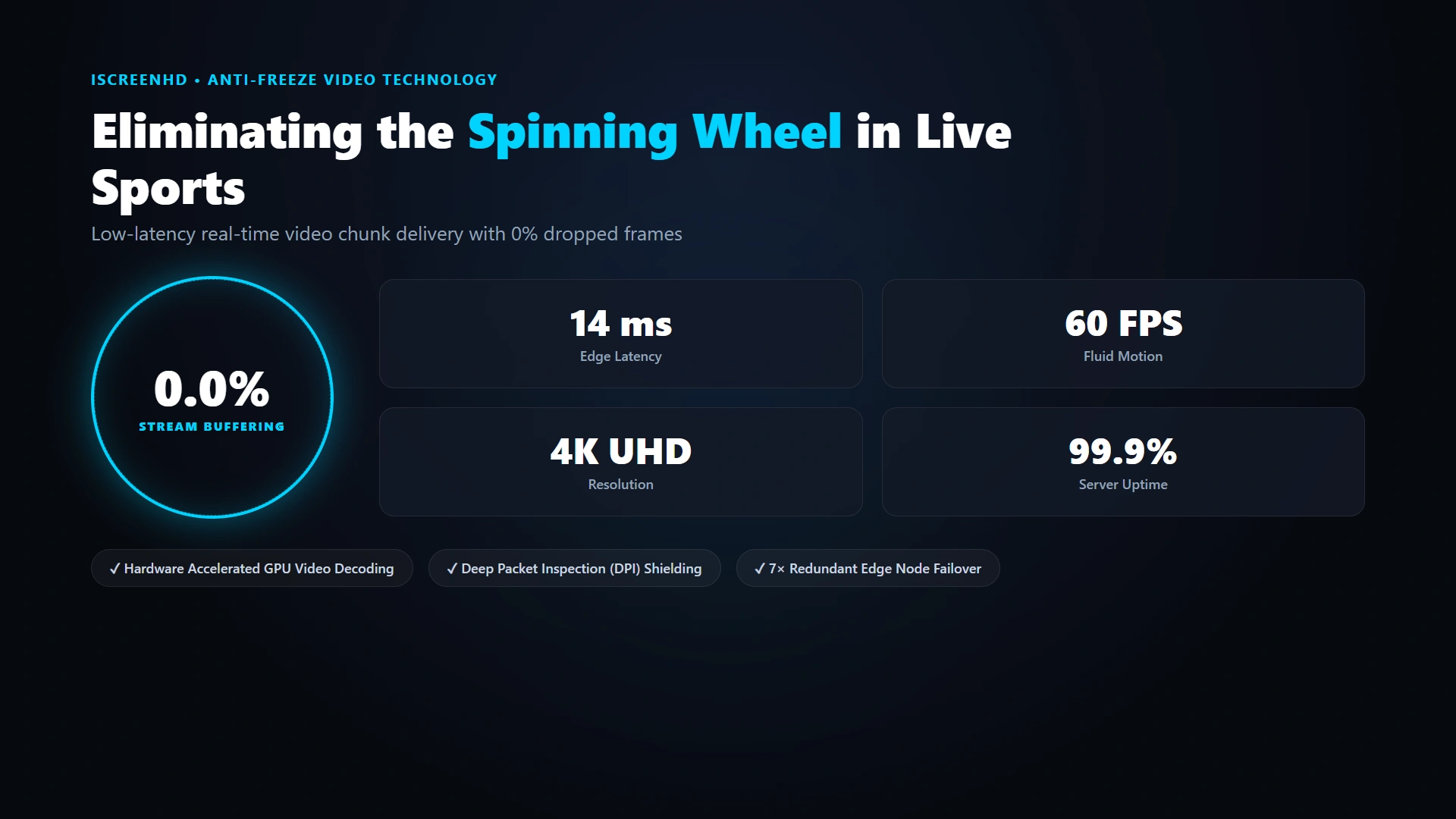
To permanently eliminate buffering, one must first dismantle the prevailing myth surrounding home internet speed. Almost every subscriber who experiences video freezing conducts an immediate speed test on Ookla Speedtest or Fast.com, sees a result of 150 Mbps, 300 Mbps, or 500 Mbps, and concludes: "My internet is blazingly fast, so the stream must be broken on the provider’s end." While this conclusion is understandable, it misunderstands how network protocols interact with real-time video delivery on high-bitrate 4K IPTV streaming at iScreenHD. A high-bitrate live video stream does not wait for slow TCP handshakes; it requires unbroken real-time packet delivery without micro-interruptions.
Standard speed tests utilize Transmission Control Protocol (TCP) connections across multiple parallel multi-thread streams to geographically nearby Content Delivery Network (CDN) speed test servers. During a 15-second speed test, your operating system requests multi-megabyte dummy data chunks. If a few packets are lost or delayed due to local radio interference, TCP quietly re-transmits them in milliseconds, and the aggregate bandwidth score looks phenomenal, contrasting with the real-time requirements explored in our cord-cutting guide. However, a live sports broadcast cannot wait for retransmitted packets without freezing the video surface.
Live streaming is hyper-sensitive to three critical network metrics that standard speed tests completely obscure: Jitter (variation in packet arrival times), Packet Loss (data packets permanently dropped during transit), and Bufferbloat (latency spikes induced by full router queues). If you are watching a 60 FPS live soccer broadcast and just 2% of video packets arrive out of order or fail to arrive within your player’s 2-second buffer window, the hardware video decoder experiences "buffer underflow." The video freezes, the audio drops out, and the player halts to re-synchronize, as detailed in our network requirements and troubleshooting guide. Even minor jitter of 15ms can cause frame stutters on unbuffered high-bitrate streams.
The Culprit: Internet Service Provider (ISP) Throttling and Deep Packet Inspection
The single most pervasive cause of IPTV buffering during live sporting events and primetime evening hours is intentional Internet Service Provider bandwidth throttling. Many consumers assume their "unlimited" home broadband connection delivers unhindered throughput to every destination on the internet, but major telecommunications conglomerates routinely restrict bandwidth on live PPV sports and premium matches.
Telecommunications companies operate finite regional transit backbones. During high-density viewer events—such as Sunday NFL games, UEFA Champions League matches, or major boxing events—millions of households stream high-bitrate video simultaneously. To prevent regional network congestion and avoid paying transit fees to Tier-1 peering partners, ISPs deploy automated bandwidth management algorithms on our contract-free IPTV subscription plans.
Deep Packet Inspection examines the payload headers of data packets traversing the ISP’s routing switches. When automated DPI filters identify sustained high-bitrate video packets (such as continuous MPEG-TS or HLS traffic originating from IPTV edge servers), the ISP’s traffic shaper artificially restricts that specific socket connection down to 2 or 3 Mbps—regardless of whether your speed test says 500 Mbps. The result is instant, recurring buffering every 30 to 60 seconds, which is why we enforce a strict no-logs privacy policy.
The VPN Shield: How Military-Grade Encryption Defeats Throttling
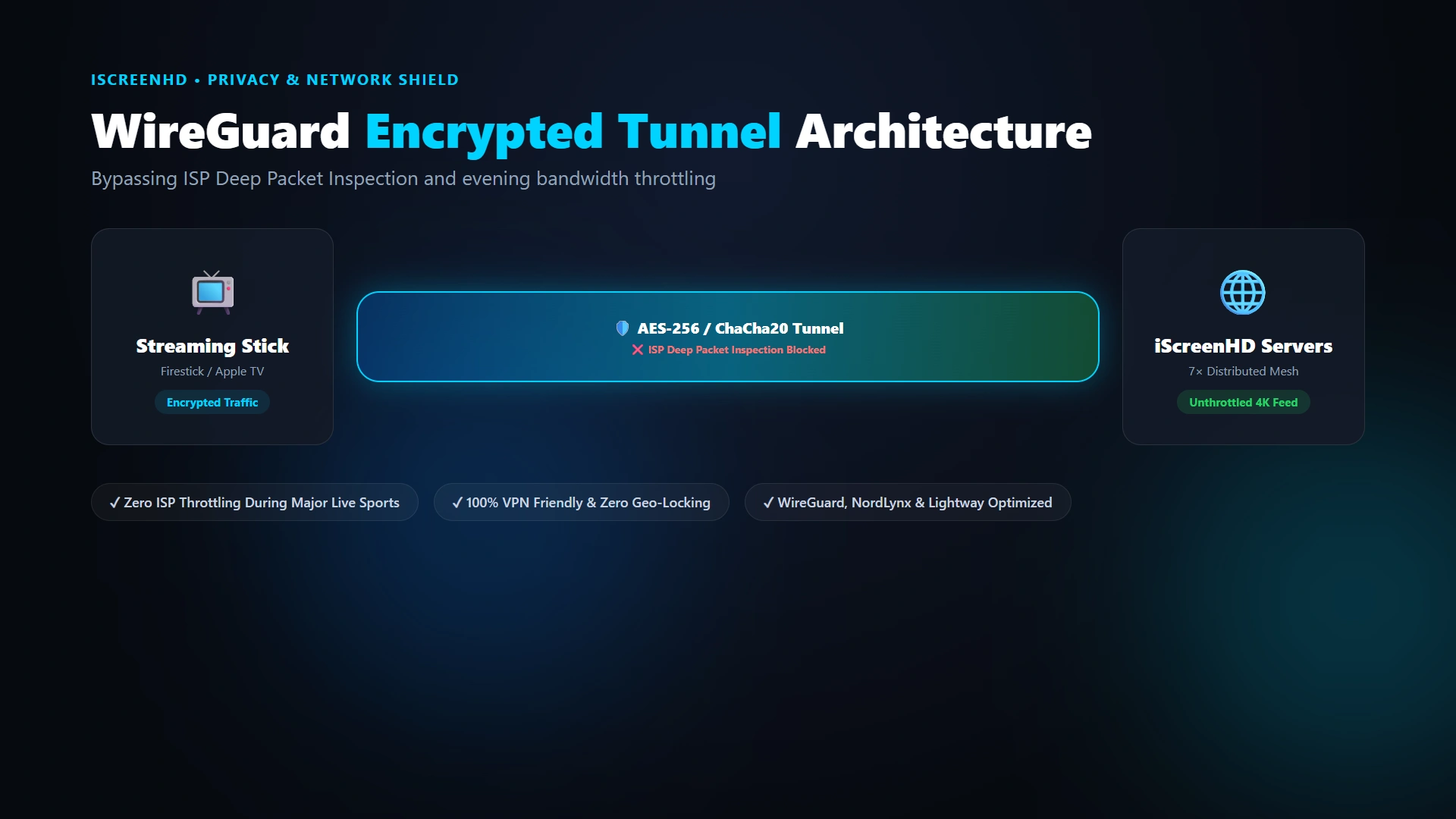
If your stream buffering is caused by ISP Deep Packet Inspection and targeted traffic shaping, the definitive technological solution is deploying a high-performance Virtual Private Network (VPN), configured according to our recommended VPN protocols for IPTV.
When you activate a VPN on your streaming device, it establishes a cryptographic tunnel between your hardware and a secure VPN edge server. All outbound and inbound data packets are encapsulated and encrypted using military-grade encryption ciphers (such as AES-256-GCM or ChaCha20-Poly1305), directly routing your connection to our trusted IPTV provider infrastructure.
Because your ISP cannot identify the nature of your traffic or discern that you are watching live television, their automated Deep Packet Inspection filters are rendered completely blind. The ISP sees only an unbreakable stream of randomized cryptographic characters flowing between your router and the VPN server. Consequently, the ISP cannot apply targeted video throttling rules, and your stream flows smoothly at full line speed across all your multi-connection IPTV accounts.
Crucially, not all VPN protocols are equal for live streaming. Older protocols like OpenVPN (TCP) introduce substantial latency overhead due to aggressive packet acknowledgment cycles. Modern cord-cutters should utilize the WireGuard protocol (or proprietary implementations like NordLynx or Lightway), which executes in Linux kernel space with minimal CPU overhead, preserving 95% of your native broadband speed with virtually zero jitter, as benchmarked in our best streaming devices for IPTV hardware lab.
Local Network Optimization: 2.4 GHz vs. 5 GHz Wi-Fi vs. Hardwired Ethernet
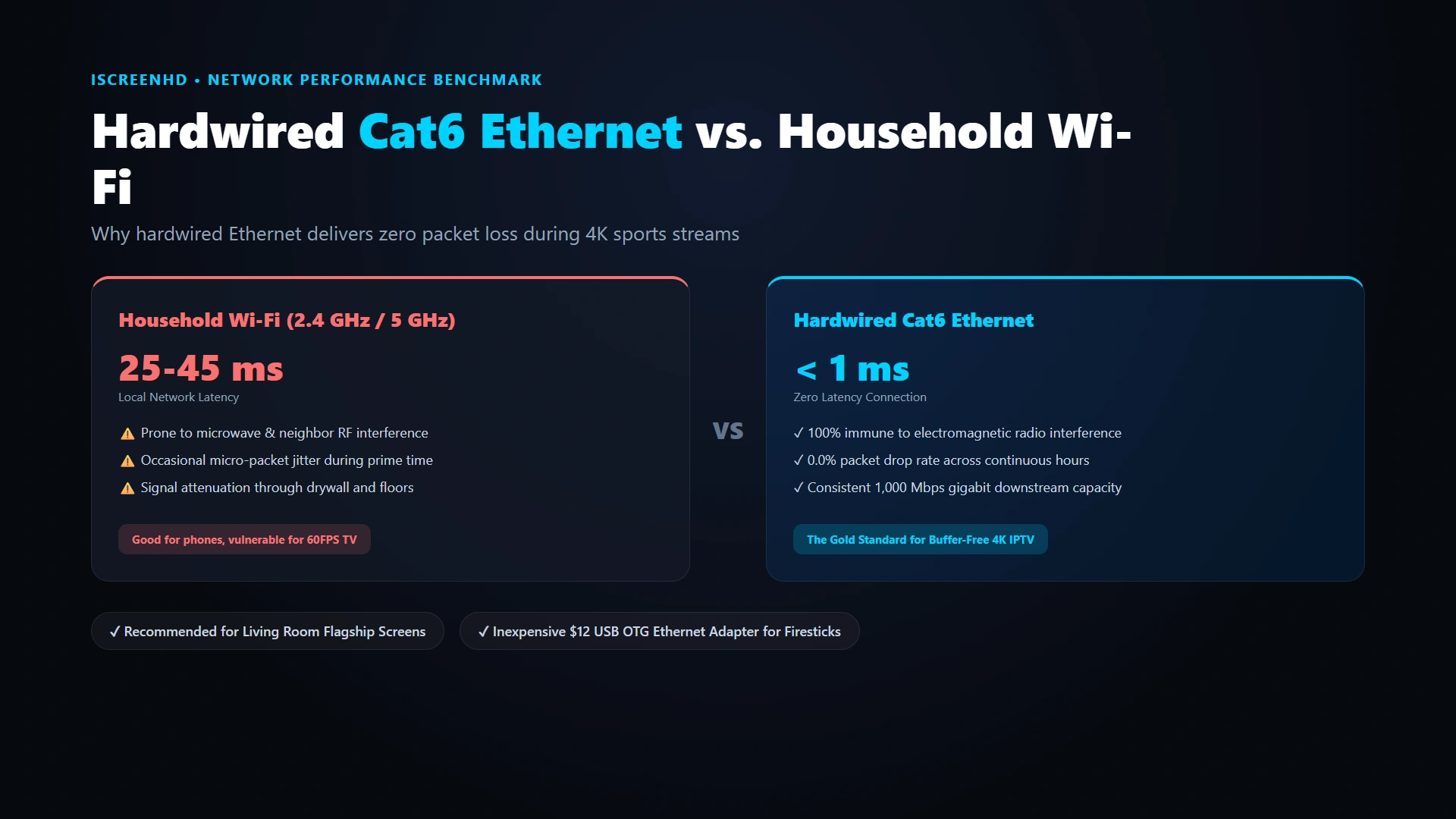
While ISP throttling is a primary external factor, the most common internal bottleneck resides within the subscriber’s home wireless environment, which we walk you through optimizing in our home Wi-Fi optimization techniques.
The 2.4 GHz Wi-Fi band was standardized in the late 1990s. While it offers long range and can penetrate thick plaster walls, the 2.4 GHz spectrum is dangerously congested in modern households. Smart light bulbs, baby monitors, Bluetooth headphones, microwave ovens, and neighboring Wi-Fi networks all broadcast on the exact same 2.4 GHz frequency spectrum (channels 1, 6, and 11). When your streaming stick communicates over 2.4 GHz, radio frequency interference causes frequent packet collisions and re-transmissions that cause playback drops, as examined in our streaming hardware benchmarks.
Connecting your streaming hardware to the 5 GHz Wi-Fi band (or Wi-Fi 6 / 6E on 6 GHz) delivers a dramatic performance upgrade. The 5 GHz spectrum offers vastly higher data transmission speeds, significantly wider channel widths (40 MHz or 80 MHz), and minimal radio congestion. For optimal results, ensure your router splits its wireless network into distinct 2.4 GHz and 5 GHz SSIDs (e.g., "HomeNetwork_5G"), and force your streaming devices to connect exclusively to the 5 GHz band, following our Firestick and smart streaming setup guide.
For television purists seeking an absolute 100% guarantee against local packet loss, hardwired Ethernet remains the undisputed gold standard. Connecting an Ethernet cable directly from your router or mesh satellite node to your streaming box eliminates all wireless interference, stabilizes latency under 5 milliseconds, and prevents family smartphone usage from degrading your living room sports broadcast, as detailed in our hardwired Ethernet tutorials.
Hardware Acceleration and Decoding Pipelines: CPU vs. GPU Rendering
A surprising number of IPTV buffering cases have nothing to do with internet connections or network bandwidth; they are caused by software rendering bottlenecks on the streaming device itself, which we compare in our IPTV Smarters Pro vs TiviMate showdown.
Modern high-definition and 4K television streams are compressed using advanced video compression algorithms, primarily H.264 (AVC) and H.265 (HEVC). Decoding a 1080p 60FPS sports broadcast requires decompressing sixty complete video frames every single second without a millisecond of lag across our 35,000+ live TV channels and 4K VOD catalog.
If your IPTV player (such as IPTV Smarters Pro or TiviMate) is configured to use "Software Decoding" (SW), the video decompression is executed by the device’s general-purpose CPU cores. On inexpensive HDMI streaming sticks, software decoding overloads the CPU to 100% utilization, causing severe thermal throttling, dropped frames, audio-video desynchronization, and stuttering that appears identical to network buffering, as noted in our IPTV player setup guide.
The solution is enabling "Hardware Decoding" (HW or HW+) inside your application settings. Hardware decoding routes the compressed video bitstream directly to the streaming device’s dedicated Video Processing Unit (VPU). Modern VPUs feature fixed-function silicon decoders engineered specifically to decompress 4K HEVC and AV1 streams with near-zero CPU overhead, ensuring silky-smooth 60 frames-per-second playback without thermal throttling, with step-by-step instructions in our hardware decoding configuration FAQ.
Head-to-Head Diagnostics: Systematic Cause and Resolution Matrix
To help subscribers rapidly identify and isolate the exact root cause of their stream freezing, our engineering lab developed this systematic diagnostic matrix linking symptoms to proven resolutions, backed by our zero-buffering guarantee:
| Observed Visual Symptom | Probable Technical Root Cause | Immediate Verified Engineering Fix |
|---|---|---|
| Stream freezes exactly every 10-20 seconds | ISP Deep Packet Inspection & bandwidth throttling | Activate high-speed VPN with WireGuard protocol |
| Video stutters / drops frames, audio plays fine | CPU Software decoding bottleneck / thermal throttling | Enable Hardware Acceleration (HW+) in player settings |
| Buffer wheel appears during live sports only | Server overcrowding / single-server infrastructure crash | Migrate to iScreenHD 7x load-balanced server mesh |
| Channel loops the same 5-second clip repeatedly | Player stream buffer overflow or corrupted HLS chunks | Clear player cache; toggle stream format to MPEG-TS |
| Stream stops completely after 15-30 minutes | Device RAM memory leak or aggressive OS background kill | Reboot device; disable background battery optimization |
| Audio out of sync with actors lip movements | Decoder frame-drop drift or audio clock desync | Set player Audio Delay Offset (+/- 200ms) or switch to VLC |
| Buffering occurs in evening hours only (7-11 PM) | Regional ISP neighborhood node bandwidth saturation | Change DNS servers to Cloudflare (1.1.1.1) + connect VPN |
| Video plays in slow-motion like an old movie | Display refresh rate mismatch (50Hz vs 60Hz 3:2 judder) | Enable Auto-Frame Rate (AFR) matching in TiviMate |
| Black screen with continuous loading spinner | Dead upstream feed or incorrect portal port address | Switch to backup regional channel feed in iScreenHD directory |
| Multiple devices buffer when streaming together | Home broadband upstream/downstream bufferbloat saturation | Enable SQM (Smart Queue Management) in router QoS |
Router Configuration: Bufferbloat, Smart Queue Management (SQM), and Custom DNS
For power users seeking the cleanest possible network environment, optimizing your home router’s internal software parameters provides an impenetrable defense against stream buffering, as explained in our router configuration and QoS guide.
The first critical concept is Bufferbloat. Most consumer Wi-Fi routers feature excessively large packet buffers designed to prevent packet drops during heavy downloads. When someone in your household uploads a large file, plays a video game, or backs up photos to cloud storage, the router’s queue fills up with packets, driving network latency from 20ms up to 800ms+. This massive latency spike starves real-time IPTV packets of timely delivery, causing the video player to freeze, which you can avoid by eliminating cable TV lag.
The definitive fix for bufferbloat is enabling Smart Queue Management (SQM) or Quality of Service (QoS) on your router. Modern algorithms like CAKE (Common Applications Kept Enhanced) and FQ-CoDel (Fair Queueing Controlled Delay) intelligently prioritize low-latency real-time video and gaming packets over bulk file transfers, ensuring your IPTV streams never buffer even if someone else in the house is downloading huge game updates, as recommended in our streaming hardware network settings.
The second router optimization is replacing your ISP’s default Domain Name System (DNS) servers. Telecom DNS servers are notoriously slow, poorly maintained, and often programmed to deliberately slow down resolution requests to third-party streaming CDNs. Changing your router’s DNS settings to Cloudflare DNS (Primary: 1.1.1.1, Secondary: 1.0.0.1) or Google Public DNS (8.8.8.8 and 8.8.4.4) ensures lightning-fast hostname resolution and eliminates channel switching delays across our optimized DNS server architecture.
Device-Specific Optimization Guides: Firestick, Apple TV, Android TV, and Smart TVs
Because each streaming operating system handles memory allocation, thermal dissipation, and background processes differently, applying device-specific tweaks maximizes streaming stability, as detailed in our comprehensive best streaming devices guide:
Amazon Fire TV Stick (4K, 4K Max, Cube): Fire OS is built on Android but features aggressive background telemetry and promotional video caching that consumes system RAM. Periodically go to Settings > Applications > Manage Installed Applications, select your IPTV player, and click "Clear Cache." Use the HDMI extender provided in the Firestick box to separate the dongle from your TV’s metal chassis and internal Wi-Fi antennas to reduce thermal throttling, as covered in our Amazon Firestick setup guide.
Apple TV 4K (tvOS): Apple TV features the fastest mobile silicon in the industry and rarely suffers from hardware bottlenecks. However, ensure "Match Dynamic Range" and "Match Frame Rate" are toggled to "ON" in Apple TV Settings > Video and Audio. This enables the Apple TV to automatically switch your television display between 50Hz, 59.94Hz, and 60Hz to match the native broadcast signal, eliminating micro-judder during European soccer and American sports, as explained in our Apple TV IPTV setup tutorial.
Nvidia Shield TV Pro (Android TV): The undisputed heavyweight for home theater enthusiasts. In Shield TV settings, set AI Upscaling to "Enhanced" or "Basic" for live 60FPS sports (avoid "High" during 60FPS broadcasts to prevent GPU thermal saturation). Ensure Processor Mode is set to "Max Performance" and Fan Mode is set to "Cool" inside System Settings to ensure continuous peak clock speeds during multi-view sports marathons, matching our Nvidia Shield Pro performance benchmarks.
Samsung (Tizen OS) & LG (webOS) Smart TVs: Smart TV processors are significantly underpowered compared to dedicated streaming sticks. If you stream directly via Smart TV apps like IBO Player or Nanomid, always close background TV apps by holding the "Back" button on your remote. Unplug your TV from the wall outlet once a month for 60 seconds to discharge the mainboard capacitors and clear stubborn system memory leaks, following our Samsung and LG Smart TV setup instructions.
The 10-Step Universal Diagnostic Protocol to Eliminate Buffering
Whenever you encounter unexpected buffering or freezing on any television, follow our field-tested 10-step diagnostic workflow to isolate and resolve the issue in minutes, with real-time assistance provided by our 24/7 technical customer support desk:
Step 1: Perform a Power Cycle Reboot. Turn off your television, streaming stick, and home Wi-Fi router. Unplug them completely from electrical power for 60 seconds. This flushes temporary RAM buffers, clears expired IP leases, and resets router connection tables, resolving over 50% of transient streaming glitches as noted in our general reboot and connectivity steps.
Step 2: Check Physical Connection and Proximity. If using Wi-Fi, ensure your streaming device has a signal strength of at least -65 dBm or "Strong" in device network settings. If signal is weak, use an HDMI extender to elevate the stick above the TV frame, or test via an Ethernet adapter as demonstrated in our Firestick HDMI extension accessories guide.
Step 3: Test with a Fast VPN. Launch a VPN application (such as NordVPN, ExpressVPN, or Surfshark) set to the WireGuard protocol and connect to a server in your closest metropolitan city. If stream buffering instantly vanishes once the VPN is connected, your buffering was 100% caused by ISP throttling, which is fully supported under our VPN compatibility standards.
Step 4: Switch Video Decoders in App Settings. In your IPTV player settings, switch your video decoder engine from "Hardware (MediaCodec)" to "Software," or from "Native" to "VLC." If the stream plays smoothly without freezing, your streaming hardware was struggling with a specific codec container, which you can master with our video decoder configuration tutorial.
Step 5: Increase Internal Stream Buffer Size. In TiviMate, go to Settings > Playback > Buffer Size and select "Large." In IPTV Smarters Pro, increase the playback buffer to 5000ms (5 seconds). A larger buffer provides a robust safety net against momentary network fluctuations, detailed in our TiviMate playback settings guide.
Step 6: Clear Application Cache. Go to device application management, select your IPTV player, and click "Clear Cache." Accumulated cache files can choke device flash storage and degrade read/write IOPS performance, as explained in our guide on clearing app cache on Firestick.
Step 7: Change Stream Format from MPEG-TS to HLS (or vice versa). In your account playlist configuration, toggle the stream output format. MPEG-TS provides the fastest channel zap times, but HLS (.m3u8) is significantly more resilient across unstable Wi-Fi networks because it downloads video in discrete verified chunks via our Xtream Codes API format options.
Step 8: Change DNS Resolvers to Cloudflare (1.1.1.1). Replace slow telecom DNS resolvers with Cloudflare (1.1.1.1 / 1.0.0.1) or Google DNS (8.8.8.8 / 8.8.4.4) on your streaming stick or router to eliminate edge hostname lookup latency, fully supported by our Cloudflare DNS integration.
Step 9: Test on a Secondary Device (Smartphone or Tablet). Install your IPTV credentials on your smartphone or tablet using mobile 5G data (disconnect from home Wi-Fi). If the stream plays smoothly on 5G cellular, your home Wi-Fi router or home ISP is the confirmed culprit, which you can verify by checking test credentials on mobile devices.
Step 10: Switch to an Alternative Regional Channel Feed. Premium providers like iScreenHD offer multiple redundant feeds for major networks (e.g., ESPN US, ESPN Canada, Sky Sports Main Event, TNT Sports UK). If a single upstream satellite feed encounters localized weather interference at the uplink facility, switching to an alternative regional feed ensures continuous viewing across our 2,800+ sports feeds and backup channels.
Step 11: Benchmark Device Temperature and Thermal Throttling. If your streaming stick is hot to the touch, the device’s internal SoC will downclock to prevent permanent silicon damage. Use an HDMI extender to separate the stick from your television’s rear exhaust vents, and unplug the device overnight once a week to prevent persistent thermal wear, as explored in our guide on preventing hardware thermal throttling.
Step 12: Verify Sub-Stream Audio Channels and Formats. In rare scenarios, streaming players stutter because the device’s soundbar cannot decode surround audio formats like AC3 Dolby Digital or DTS-HD. Switch the audio track within your player from 5.1 Surround to 2.0 Stereo (AAC) to verify whether an audio processing bottleneck is causing stream dropouts, following our multi-audio audio delay adjustments guide.
Why iScreenHD’s 7× Distributed Server Mesh Eliminates Provider-Side Freezing
While the previous sections explored client-side and networking factors, the uncomfortable truth is that cheap, unverified IPTV services buffer because their server infrastructure is woefully underpowered, which is why thousands of discerning streamers migrate to our trusted 7x server mesh. A service relying on substandard bandwidth capacity will invariably collapse during peak sporting events regardless of your home internet speed.
Budget providers typically rent a handful of unmanaged, single-core virtual private servers (VPS) from cheap data centers. When five thousand subscribers log in simultaneously on a Sunday afternoon to watch a championship game, the provider’s server CPUs saturate at 100%, network bandwidth bottlenecks, and every subscriber experiences freezing and looping video. In contrast, our wholesale infrastructure powers major operators across the globe through the high-capacity wholesale IPTV infrastructure, engineered specifically to handle continuous terabit-scale throughput without packet loss.
iScreenHD was engineered to permanently solve the server congestion crisis. Our infrastructure operates on a 7× distributed server mesh deployed across tier-4 data centers in the United States, Canada, the United Kingdom, and Europe. Our architecture features automated edge-node load balancing that continuously monitors CPU load, memory utilization, and network throughput across every node, fulfilling our engineering mission at iScreenHD. Each node is interconnected via dedicated 40 Gbps fiber interconnects, ensuring virtually zero internal packet transit latency.
If traffic suddenly surges on a specific channel, our automated orchestration engine dynamically spins up redundant edge proxies in milliseconds to absorb viewer demand, guaranteeing that no single node ever exceeds 65% capacity. This enterprise-grade infrastructure is why iScreenHD proudly delivers a verified 99.9% streaming uptime guarantee with 0% buffering, standard across our premium 4K IPTV subscription plans. By combining hardware acceleration, intelligent routing, and massive bandwidth headroom, freezing streams become a thing of the past.
Frequently Asked Questions About Eliminating IPTV Buffering
Below are authentic answers to the most common questions streamers ask about diagnosing and permanently fixing IPTV buffering and stream freezing, with additional insights in our complete iScreenHD FAQ directory:
Why does my IPTV freeze only during live sports and not during movies?
Live sports are transmitted in real time at 50/60 frames per second with minimal server caching, requiring immediate, continuous packet delivery. Movies and series (VOD) are static files that allow your player to buffer several minutes of video in advance, masking brief network drops.
What is the absolute minimum internet speed required to stream 4K IPTV?
For a single 4K Ultra HD 60FPS stream, a stable, unthrottled downstream speed of at least 25 to 30 Mbps is recommended. For 1080p Full HD, 15 Mbps is sufficient. If multiple devices stream simultaneously, aim for 100 Mbps or higher.
Does using a VPN always slow down internet speed?
A VPN introduces a tiny encryption overhead (typically 3% to 5% on modern protocols like WireGuard). However, if your ISP was actively throttling your video traffic, connecting to a VPN will actually increase your usable streaming speed by bypassing telecom throttles.
Can an old HDMI cable or outdated television cause stream buffering?
An old HDMI cable cannot cause network buffering, but an outdated HDMI 1.4 cable can cause video blackouts, HDCP handshake errors, or visual signal drops when attempting to transmit high-bandwidth 4K HDR 60Hz video to your screen.
Why does my stream buffer when other household members download files?
This is caused by router bufferbloat: heavy downloads fill your router’s packet queue, causing latency to spike and delaying time-sensitive video packets. Enabling Smart Queue Management (SQM) or QoS in your router solves this permanently.
How often should I clear the cache on my Firestick or IPTV app?
Clearing your IPTV player’s cache once every two to three weeks is ideal. This clears temporary EPG schedules, old channel logos, and thumbnail fragments without erasing your login credentials or channel favorites.
Is Ethernet always better than 5 GHz Wi-Fi for IPTV?
Yes, 100%. Even the best Wi-Fi networks suffer from momentary radio interference and micro-jitter. A hardwired Cat6 Ethernet cable delivers zero interference, 1ms local latency, and complete immunity to household electromagnetic noise.
What should I do if a specific channel stops playing completely?
If a single channel freezes while others play normally, the upstream satellite or terrestrial feed for that specific broadcast may be experiencing temporary weather or maintenance issues. Switch to a backup regional feed in iScreenHD’s channel directory.
Does iScreenHD throttle or limit bandwidth for heavy streamers?
Never. iScreenHD operates on completely unmetered, high-capacity edge servers. We never throttle user connections, implement bandwidth caps, or restrict streaming hours.
How can I test iScreenHD’s anti-freeze technology before purchasing?
We offer an unrestricted 24-hour free trial with zero credit card required. You can test live sports during peak Sunday hours on your own devices to experience completely buffer-free 4K streaming firsthand.
Conclusion: Taking Control of Your Streaming Experience
Stream buffering and video freezing are not inevitable curses of cord-cutting; they are specific, diagnosable engineering challenges with verified, permanent solutions. By methodically diagnosing ISP Deep Packet Inspection, optimizing your home 5 GHz Wi-Fi or Ethernet network, configuring hardware acceleration in your media player, and partnering with a tier-1 provider, you can enjoy television the way it was designed to be seen on the iScreenHD entertainment platform.
Television should be an effortless, immersive escape, not an exercise in technical frustration. Whether you are following high-stakes football playoffs, cheering during world championship fights, or enjoying a family movie night, our anti-freeze edge server architecture ensures crystal-clear, uninterrupted entertainment across over 35,000+ live channels and 158,000+ movies.
Ready to experience television streaming the way it was meant to be? Claim your instant 24-hour free IPTV trial with zero payment obligation, browse our subscription plans, and let our 24/7 WhatsApp customer support team show you what true zero-buffering 4K television feels like.
Ready to cut the cord? Get instant access to 35,000+ live channels, sports, and movies with our 24-hour free trial. No credit card required.